作成日: 2023/06/26 最終更新日: 2023/06/26
文書種別
使用方法
詳細
コードを用いて、C1Scheduleの特定の日付を選択状態にするため、C1ScheduleのGoToDateメソッドまたはShowDatesメソッドを使用できます。
以下に、ボタンクリックで2週間後の日づけを選択するコードを記載します。
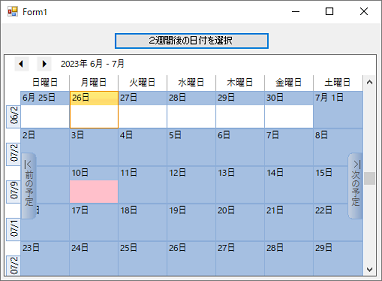
◎サンプルコード(VB)
以下に、ボタンクリックで2週間後の日づけを選択するコードを記載します。
◎サンプルコード(VB)
Imports C1.Win.C1Schedule
Public Class Form1
    Private Sub Form1_Load(sender As Object, e As EventArgs) Handles MyBase.Load
        C1Schedule1.ViewType = ScheduleViewEnum.MonthView
    End Sub

    Private Sub Button1_Click(sender As Object, e As EventArgs) Handles Button1.Click
        ' 指定した日を選択
        ' ----GoToDateを使用----
        C1Schedule1.GoToDate(DateTime.Now.AddDays(14))

        '' ----ShowDatesを使用----
        'Dim dt(0) As DateTime
        'dt(0) = DateTime.Today.AddDays(14)
        'C1Schedule1.ShowDates(dt)
    End Sub

    Private Sub C1Schedule1_BeforeViewChange(sender As Object, e As BeforeViewChangeEventArgs) Handles C1Schedule1.BeforeViewChange
        ' クリック時にViewTypeをそのままにする
        If C1Schedule1.ViewType = ScheduleViewEnum.MonthView Then
            e.ViewType = ScheduleViewEnum.MonthView
        End If
    End Sub
End Classusing C1.Win.C1Schedule;
namespace prj_C1Schedule
{
public partial class Form1 : Form
{
public Form1()
{
InitializeComponent();
c1Schedule1.ViewType = ScheduleViewEnum.MonthView;
}
private void button1_Click(object sender, EventArgs e)
{
// 指定した日を選択
// ----GoToDateを使用----
c1Schedule1.GoToDate(DateTime.Now.AddDays(14));
//// ----ShowDatesを使用----
//List days = new List();
//days.Add(DateTime.Today.AddDays(14));
//c1Schedule1.ShowDates(days.ToArray());
}
private void c1Schedule1_BeforeViewChange(object sender, C1.Win.C1Schedule.BeforeViewChangeEventArgs e)
{
// クリック時にViewTypeをそのままにする
if (c1Schedule1.ViewType == ScheduleViewEnum.MonthView)
{
e.ViewType = ScheduleViewEnum.MonthView;
}
}
}
}